


How to Save Instagram Videos From Instagram in 2026
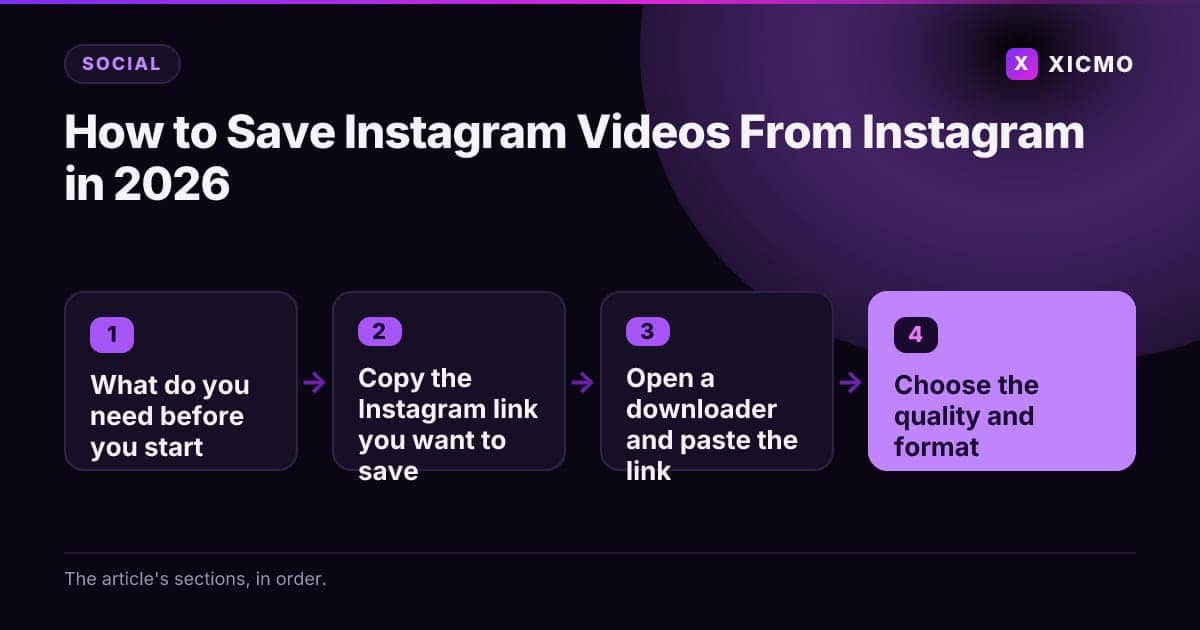
SaveNet from Instagram is a web-based downloader that saves public Instagram reels, videos and photos to your device as MP4 or image files. You paste a post link, pick a quality, and download the file. The whole process takes about two minutes. The one thing that matters most is saving only content you have the right to keep, and using the file the way the creator allows.
Key takeaways

- SaveNet from Instagram saves public reels and videos as MP4 files in about two minutes.
- Copy the full post link from the Share menu before you paste it into a downloader.
- Choose 720p or 1080p for clear playback and 480p for a smaller file.
- Only save public posts and do not republish a downloaded file without permission.
What do you need before you start?
- The public link to the Instagram post, reel or story you want to save
- A phone or computer with a modern browser such as Chrome, Safari or Firefox
- Enough free storage for the file, usually 10 to 80 MB for a short reel
- A clear reason to save the file, such as offline reference or a licensed reuse
- A note of the creator's handle so you can credit them if you reuse the clip
Most public posts work with a downloader. Private accounts do not, because Instagram only exposes the media file to approved followers.
Step 1: Copy the Instagram link you want to save
Open the Instagram app or instagram.com and find the reel or video. Tap the three dots in the top right corner, choose Share, then Copy link. On desktop, click the share icon under the post and select Copy link. The URL should start with instagram.com/reel/ or instagram.com/p/.
This step matters because the downloader reads the post ID from the link. A short or cropped link can return an error. Always copy the full address.
Step 2: Open a downloader and paste the link
Open a trusted downloader such as SaveNet or instagram videosave.net in a new tab. Paste the link into the input box. Press the Download or Enter key. Many tools return a preview in about 5 to 10 seconds, so you can confirm the clip is the one you want before saving it.
Check the address bar before you paste anything. Use only the official domain you typed in yourself, not a link from a comment or an ad. Fake download sites often copy the layout but add pop-ups or fake installers.
Step 3: Choose the quality and format

Look for the download options below the preview. Most tools offer MP4 in several resolutions, such as 360p, 720p and 1080p. Pick 1080p if you plan to edit or repost the clip. Pick 480p if you only want a small file for a phone.
Some tools also offer an audio-only option or a separate music download. Choose the audio option only if you need the sound. Video with music keeps the original soundtrack, which is what most people want from a reel.
Step 4: Download the file and check it
Click the download button and wait for the browser to finish. On iPhone, Safari may ask whether to save the file to Files or Photos. On Android, the file lands in the Downloads folder. Open the file once to confirm it plays with sound and that the length matches the original post.
If the file will not play, try a lower resolution. Re-copy the link and retry if the preview never loads. A failed file is usually a link problem, not a tool problem.
Step 5: Keep the file within the creator's rules
Saving a file to your device for personal viewing is different from reposting it. Instagram's Terms of Use and most creators' copyright notices do not allow you to republish other people's videos as your own. If you want to share a clip, use Instagram's own share function, which keeps the credit attached.
If you plan to reuse footage in a product demo or a blog post, ask the creator for written permission first. Note the creator's handle, the post date and the permission in a shared folder. This takes five minutes and saves a takedown later.
Step 6: Sort and store your saved videos
Create a folder structure before you download more than a few clips. A simple setup works well: one folder per year, then one subfolder per topic. Rename each file with the creator's handle and the date, for example creatorname_2026-11-04_720p.mp4. This makes the file easy to find when you need to credit the source.
Back up the folder to a cloud drive or an external disk. Phone storage fills fast with video, and a backup protects you from losing a reference clip you need for a project.
What are the most common mistakes?
Mistake 1: Pasting a link from an untrusted site. Ads and comment links can lead to fake download pages that install adware. Type the downloader domain yourself and bookmark it.
Mistake 2: Downloading private or age-restricted posts. Downloaders cannot access private accounts, and attempting workarounds can break Instagram's terms. Ask the account owner to share the file or send you the link.
Mistake 3: Reposting a saved file as your own. A downloaded file still belongs to its creator. Credit the handle, link to the original post, or ask for permission before you publish anything.
Further reading
Conclusion
SaveNet from Instagram works in four moves: copy the link, paste it into a trusted downloader, choose a quality, and save the MP4. For most people, 720p or 1080p gives the best balance of clarity and file size. The deciding factors are where the link came from and how you plan to use the file. Save only public posts, keep the creator's credit attached, and ask permission before any reuse. Start with one reel today and set up a simple folder system so your saved clips stay organized.
Frequently asked questions
Book a free
15-minute call
We will open Xicmo on your own site, show you where you are losing search and AI visibility, and leave you with the fixes whether or not you sign up.
Book a callPrefer email? hello@xicmo.com